


Windows App
3.91.63K Reviews
App Specs
- Version
- 11.0.0.120
- Updated On
- License
- Free
- Downloads
- 10,000,000+
- Developer
- Microsoft Corporation
- Categories
- Business
- Platform
- Android, iOS
Screenshots
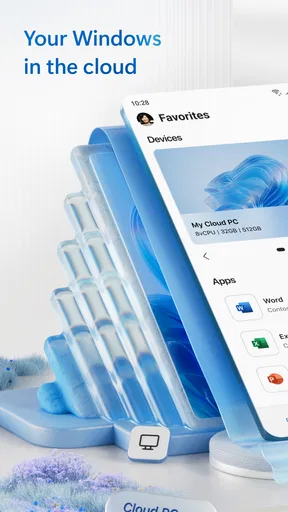
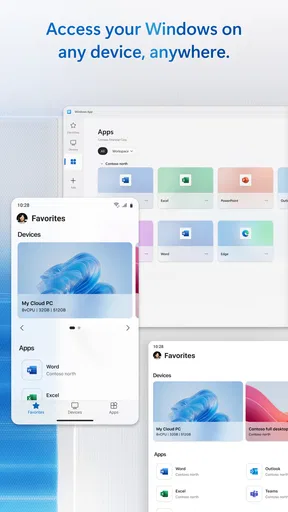
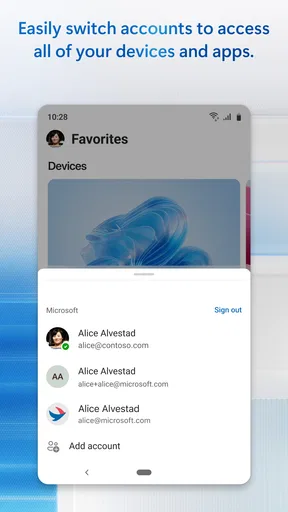
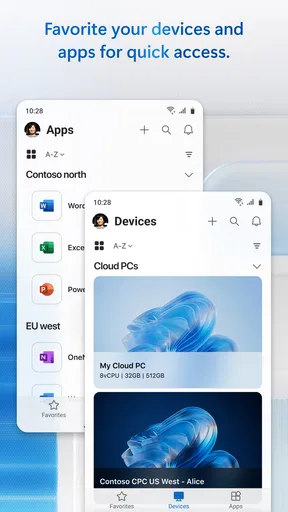
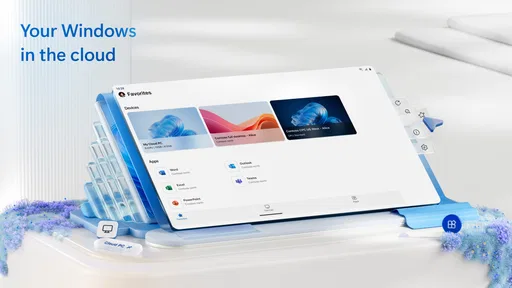
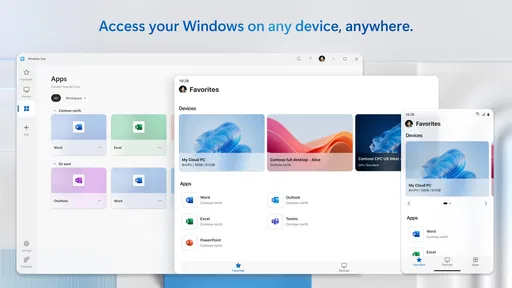
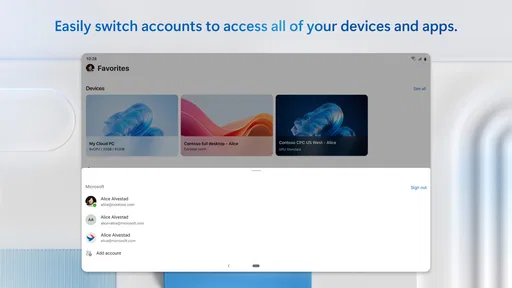
 Analysis by AppCompare
I’d decide whether to use Windows App by starting with one practical question: do I need to reach a Windows computer or virtual work environment from my phone? That is the app’s real purpose, and it makes the experience quite different from a general file manager or a tool for moving documents between devices. I find it most useful when a task depends on a particular remote desktop rather than on having the same files locally.
What remote access is good for
A realistic example is being away from your desk when someone needs a detail from a work application that is only available on your office PC. Instead of trying to recreate that setup on a phone, you can use the app to connect to the remote computer or virtual app, provided you have the access and setup needed for that environment. For occasional checks, this can be more convenient than carrying a laptop; for extended work, a phone screen may quickly feel cramped.
That distinction also helps set expectations. A remote session gives you access to a computer-based workspace; it is not the same thing as syncing a document so you can edit a local copy offline. If your main goal is to keep files available across devices, a cloud storage or file-syncing app is usually the more direct choice. If you need a specific desktop program, remote access is the stronger fit.
Who is likely to get the most from it
I’d consider it for someone who already relies on a Windows PC or virtual apps and occasionally needs to reach them while away. It may suit a worker who wants to check a desktop-only tool during a commute, a student who needs to open a resource on a remote computer, or a person supporting a setup where the relevant app lives on another machine. In each case, the benefit depends on having a valid route into that system; installing a phone app by itself does not create access to a computer.
Before relying on it, I’d try the connection in the place and on the network where I expect to use it. Confirming access while sitting beside the computer is not the same as discovering on the road that the remote environment is unavailable or that a sign-in step needs attention. A short test can show whether the phone’s display and controls are comfortable enough for the task, too.
Small-screen trade-offs and useful habits
Remote work on a phone is best for focused, brief actions: checking a screen, opening a familiar program, or making a small change when waiting until later would be inconvenient. Detailed spreadsheet work, long typing sessions, and tasks that depend on several windows are less comfortable on a small display. I’d treat the phone as an access point for specific needs, not as a full replacement for a desktop setup.
One useful habit is to decide in advance what you need to do once connected. A clear task makes it easier to navigate a remote desktop with limited screen space and reduces the chance of spending the session searching around. If the task involves sensitive work, I’d also make sure I’m in a place where the screen is not easily visible to people nearby.
Worth Reading Before You Choose

Flipboard Shows What News Apps Must Do Beyond the Feed

Switching to Android Auto Means Rethinking Your Driving Routine

Google Calendar Makes a Crowded Week Easier to Manage

Ludo King Makes the Most of the Minutes Between Plans

Baby Panda World Brings Quick Play to Modern Phones, but Its Game Library Feels Busy

ESPN’s Live Game View Makes Following Close Games Easier
Trust, access, and control
Because this app connects to remote PCs and virtual apps, the important trust question is not just whether the phone interface feels polished; it is whether you understand which computer or work environment you are entering and which account is being used. I would only connect to systems I recognize and am authorized to access. If a device is shared, I’d pay particular attention to signing out when I finish rather than leaving a session open for the next person.
The app is made by Microsoft Corporation, and its business focus is clear from its remote-access role. That context may be reassuring for someone already working in a Microsoft-oriented environment, but it should not replace checking the account and access arrangements used by the organization or computer owner. I would follow the sign-in and security practices required for that specific setup, especially when handling work information away from a private space.
How it compares with simpler alternatives
Compared with opening a cloud document on a phone, a remote session can be more useful when the work depends on an installed desktop program, a particular PC, or an environment that is not duplicated on the phone. The trade-off is that you are interacting with a remote workspace rather than simply opening a file designed for mobile use. For quick document edits, a dedicated mobile app may feel easier; for reaching a specific desktop tool, this app has a clearer purpose.
I would also distinguish it from remote-support tools whose main job is helping another person troubleshoot a device. Windows App is described around connecting to remote PCs and virtual apps, so I would choose it for reaching my own permitted work environment, not assume it is a general-purpose help desk or file-transfer solution. Picking the tool based on the task avoids expecting one kind of remote connection to behave like another.
First Impressions and Setup
Starting off, the download was a breeze. I hopped onto the app store, tapped download, and boom—it was on my phone in no time. The interface? Super sleek. I mean, it’s got that modern vibe without being too flashy, making it easy on the eyes.
Setting it up was as simple as pie. It guided me through with a friendly tutorial, so I knew exactly where everything was. No guessing games here, folks! It’s always refreshing when an app doesn’t make you jump through hoops just to get started.
Features That Stood Out
Now, onto the features. The Windows App packs quite a punch with its versatility. It’s like a Swiss army knife for your phone. From managing files to syncing with your desktop, it’s got you covered.
One of my favorite features is the seamless integration with other devices. Seriously, it’s like magic. You edit a document on your phone, and it’s instantly updated on your PC. No cables, no hassle. Just pure, wireless bliss.
Plus, the app’s compatibility with various file formats is a lifesaver. You can work with documents, spreadsheets, and even multimedia files without breaking a sweat. This app really knows how to multitask.
User Experience
Using the app feels almost intuitive. It’s like it reads your mind. Need to find a file? Just a quick search and you’re good to go. The app responds quickly, without those annoying lags that make you want to throw your phone out the window.
And let’s talk about the design for a second. It’s minimalistic but functional. Everything is where you’d expect it to be, making navigation a breeze. Even if you’re not a tech guru, you’ll find your way around easily.
Why It’s Worth Your Time
If you’re someone who loves productivity tools, this app is like a dream come true. It saves you time and keeps you organized without being overwhelming. And honestly, who doesn’t love having everything in one place?
The security features are also top-notch. With regular updates and privacy options, you can trust that your data is in safe hands. It’s comforting to know that your information is protected while you enjoy all the functionalities.
What I’d check before depending on it
There are a few practical questions I’d answer before making this part of my routine. First, can I reach the exact PC or virtual app I need with the account available to me? Second, can I comfortably complete the task on my phone, or will I need a keyboard and a larger display? Third, what should I do at the end of a session to leave the remote environment in the right state? These are setup and workflow questions, not reasons to avoid the app, but sorting them out early makes a big difference.
I’d also keep the difference between access and ownership in mind. Connecting to a remote computer does not automatically mean I can change its settings, install software, or access every resource on it; those abilities depend on the permissions and configuration of that environment. If a connection fails or an app is unavailable, I would check with the system’s administrator or owner rather than assume the phone app can fix the underlying access issue.
Cost, compatibility, and fit
Windows App is free, has an Everyone age rating, and is listed for devices running Android 9 or later. It was released on March 18, 2020, and the current version is 11.0.0.101. Those details make it straightforward to check basic device eligibility, but the more important question is whether your remote computer or virtual-app arrangement supports the way you intend to connect.
It is a business app from Microsoft Corporation, though the audience is not limited to people with a formal office job. Anyone who has legitimate access to a remote Windows environment may have a reason to use it. On the other hand, if you have no remote PC or virtual app to connect to, there is little reason to install it just in the hope that it will organize or synchronize your phone’s files.
The scale of its audience is substantial: it has more than 10 million installs, with an average rating of 3.9 from around 32,000 ratings and about 1,600 written reviews. I see that as useful context rather than proof that it will suit every setup. Remote access depends heavily on the computer, account, and work environment on the other end, so one person’s smooth experience may not match another’s.
A more cautious everyday routine
For a quick check, I’d open the app, connect only to the remote environment I intended to use, complete the specific task, and then end the session in the way appropriate for that computer. If I were reviewing confidential material in a public place, I’d avoid exposing the screen to others and wait for a more private setting if the work could safely wait. These simple choices matter because the phone brings remote work into places where a desktop would normally stay put.
If I were choosing between this and a mobile version of a work application, I’d ask whether I need the full desktop context. A mobile app is often easier for a short, routine action designed for touch. Remote access becomes more compelling when the job relies on a particular desktop program, saved workspace, or virtual environment. There is no universal winner; the better option is the one that gets the actual task done with less friction and an appropriate level of access.
My cautious verdict
My recommendation is conditional: install it if you already have a remote Windows PC or virtual app you are permitted to use, and you want a phone-based way to reach it for occasional tasks. Try a low-stakes connection first, learn how the remote session behaves, and decide whether the small screen is workable for your needs. That is a more reliable test than expecting a general promise of convenience to fit every job.
If you mainly want local file browsing, device-to-device syncing, or mobile document editing, I’d look at tools built specifically for those jobs instead. If you need a desktop-only work environment from elsewhere, this app has a more relevant role. Its value comes from making a particular remote setup reachable, not from replacing every productivity app on your phone.
In conclusion, I’d say the Windows App is a must-have for anyone looking to streamline their mobile and desktop experience. It’s efficient, user-friendly, and loaded with features that make everyday tasks feel like a walk in the park. So, if you haven’t checked it out yet, what are you waiting for? You might just find it becoming one of your favorite apps in no time.
Pros
- Seamless integration with Windows OS.
- Wide range of customization options.
- Regular updates enhance security.
- Efficient multitasking capabilities.
- Supports a variety of file formats.
Cons
- May require frequent updates.
- High system resource usage.
- Occasional compatibility issues.
- Limited features in free version.
- Complex setup for beginners.
FAQs for Windows App
What features does the Windows App offer?
The Windows App provides a wide range of features designed to enhance productivity and user experience. These include seamless integration with Microsoft Office Suite, real-time collaboration tools, a customizable user interface, and robust security measures. Additionally, it supports cloud storage for easy access to files across devices.
Is the Windows App compatible with all versions of Windows?
The Windows App is compatible with Windows 10 and later versions. However, it is important to ensure your system meets the minimum requirements for optimal performance. Users with older versions of Windows may encounter compatibility issues or limited functionality, so upgrading your OS might be necessary.
How secure is the Windows App for personal and professional use?
Security is a top priority for the Windows App. It includes advanced encryption protocols, regular security updates, and multi-factor authentication to protect user data. Additionally, it offers customizable privacy settings, allowing users to control data access and sharing, making it suitable for both personal and professional use.
Does the Windows App support third-party integrations?
Yes, the Windows App supports a variety of third-party integrations to enhance its functionality. Users can integrate popular applications such as Slack, Trello, and Zoom, among others. This allows for a more streamlined workflow and improved collaboration across different platforms, catering to diverse user needs.
What are the pricing options for the Windows App?
The Windows App offers several pricing tiers to accommodate different user requirements. There is a free version with basic features and premium plans that unlock additional functionalities like advanced collaboration tools and increased storage. Discounts may be available for educational institutions and non-profit organizations.


